 buzzabout docs
Run your first research
Go from a blank home screen to your first set of earned-media mentions in the app, then ask the assistant a follow-up question or apply a skill.
The fastest way to see what buzzabout does is to run one research from the home screen. You type a topic, the app previews how much conversation is out there, you pick how deep to go, and a few moments later you have a set of real public posts you can read, question, and analyse. We'll use a cold-brew coffee brand as the running example — by the end you'll have collected its mentions and asked the assistant a question about them.
Walkthrough
Search a topic or paste a URL
On the home screen, find the composer under the Discover what people buzz about heading. The placeholder reads Search a topic or paste a URL. Type a topic — for our example, cold brew coffee — and press Enter or click Send message (the arrow button).
A new chat opens and your message sends to the assistant. If you'd rather start from a prompt, click a suggested-question chip under a category such as Trends or Competitors.
Keyword query
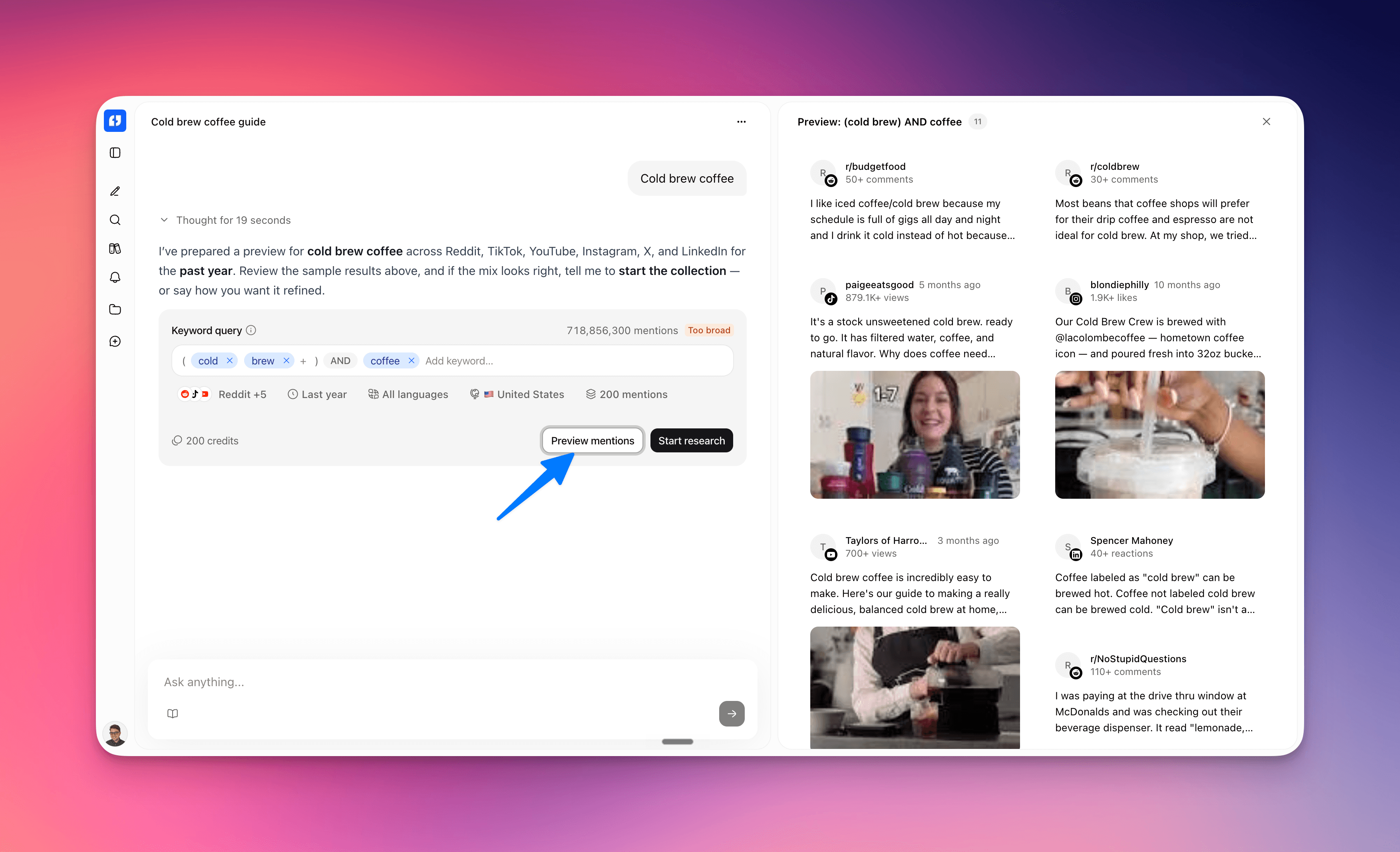
The assistant returns a research preview card titled Keyword query, showing an estimated mention count and a volume badge. The keyword estimate itself is free and no collection has started. The assistant turn can still consume separately charged token inference.
You can refine the query right here. Edit the keyword chips to broaden or narrow reach, and change the source, time, language, or country chips — each edit re-generates the estimate. The default time filter is Last year.
Refining with boolean keywords. Keyword chips support AND, OR, NOT plus parentheses for grouping and "double quotes" for exact phrases. The default join between two keywords is OR (broadens reach) — add AND to require co-occurrence, NOT to exclude. Operators are case-insensitive and shown uppercase. For example, "cold brew" NOT decaf, or coffee AND (refreshing OR smooth). Sanity-check complex queries against the live mention estimate as you edit.
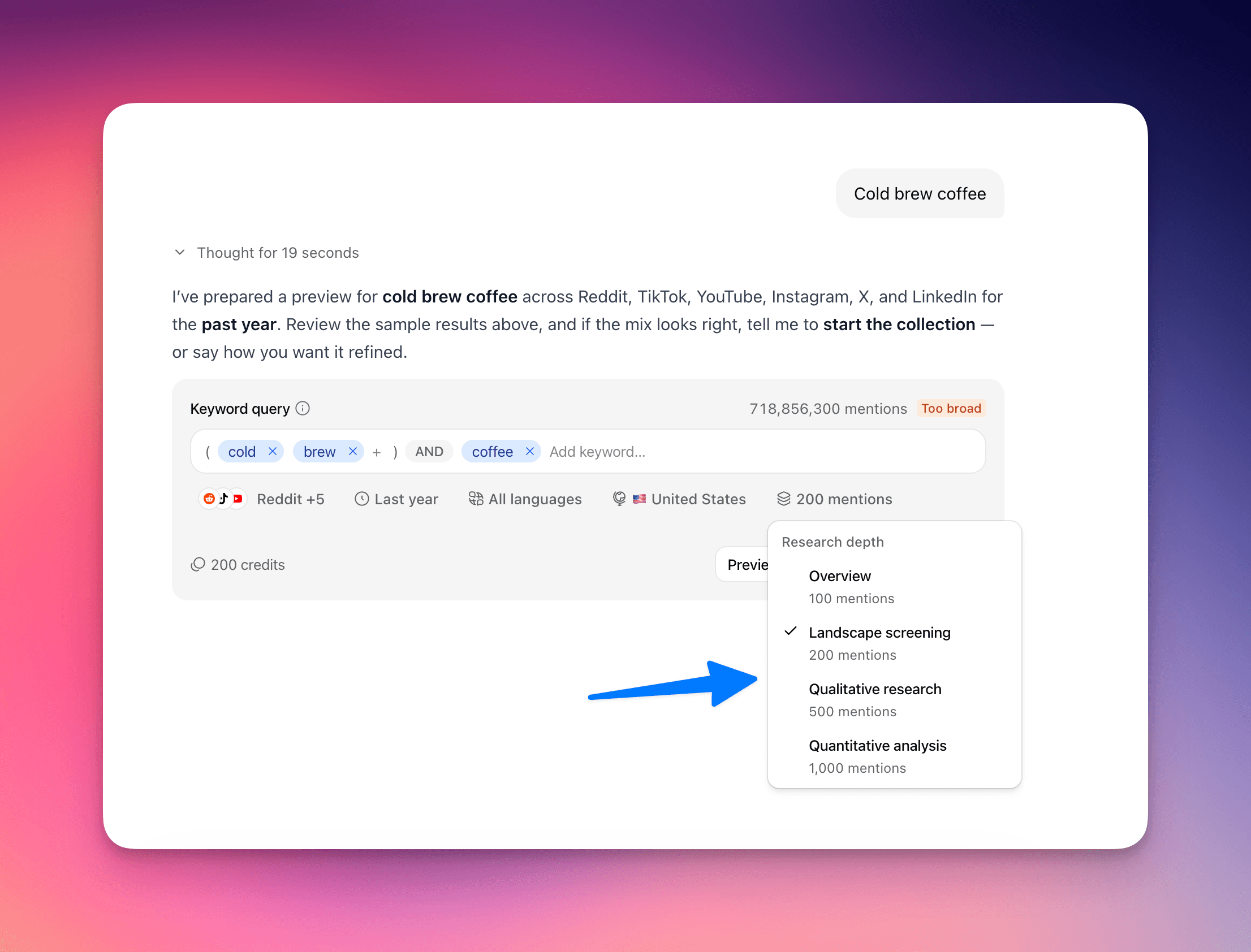
Research depth
Pick a Research depth — this sets how many mentions to collect when you run research. The options are Overview (100 mentions), Landscape screening (200 mentions), Qualitative research (500 mentions), and Quantitative analysis (1,000 mentions). The helper text reads How many mentions to collect when you run research.
The cost updates live as you change depth, since 1 mention = 1 credit, using the server's live account prices. Depth options above your plan cap are disabled. For a first run, Overview is plenty to see the value.
Start research
When the preview looks right, click Start research. This spends the balance for your chosen depth and starts collecting. The preview hides and a dataset card takes over the turn while the run completes.
If you want to look before you commit, Preview mentions opens a free sample of results in the canvas first — it doesn't spend anything or create a dataset.
Show dataset
When the run finishes, click Show dataset to open the full table and read what people are actually saying. Each row is one real public post about cold brew — the comments on a post are pulled in as context (about 10 per post) rather than listed as their own rows.
Every post is also enriched with a column of structured fields you can sort and filter on — things like Sentiment (a positive / negative / neutral label, paired with a Sentiment score from −1 to +1), Top emotion, Content intention, Tone of voice, Narrative structure, Hook, CTA, Content topics, Entities, and Mentioned brands. A couple of fields — Transcription and Visual description — are opt-in, so they only fill in when you enable them on the run.
Ask a follow-up or apply a skill
You now have data to work with. Ask the assistant a follow-up question in the chat — for example, "What do people love and complain about with cold brew?" — and it answers against your dataset with cited mentions.
For structured analysis, open the skills menu from the chat input (the book icon), choose Browse all skills, open a skill, and click Use this skill. Skills are the analysis engine: they turn your mentions into pain points, feature requests, audience profiles, share of voice, trends, and more.
Gotchas
Preview mentionsis free;Start researchspends your balance. OnlyStart researchcollects the dataset. Collection is 1 credit per mention, so your chosen depth (100 / 200 / 500 / 1,000) is that many credits on ordinary registered plans.- Plan shapes depth, not a Starter single-source restriction. Starter includes multi-source research and custom dates, with a 300-mention depth cap, so only
OverviewandLandscape screeningfit the preset picker. Pro and Business reach 1,000 mentions. Read the account's returned capability flags and research-depth limit for other offerings. - Editing any preview field regenerates the estimate. Changing a keyword chip, source, time, language, or country re-runs the estimate; the buttons lock briefly while it recalculates or while a message is streaming.
- Pasting a URL is a different mode. A typed topic gives a
Keyword querypreview with a mention estimate. A pasted profile URL gives aURL querypreview that countsprofiles foundinstead, has no depth picker, and locks its source to whatever the URL implies. - Meaningful analysis wants volume. A handful of mentions won't reveal much. Aim for ~100+ so the patterns, sentiment, and themes are real signal rather than noise.