 buzzabout docs
Use skills
Apply a saved, expert instruction block to any chat so the AI assistant analyses your mentions a consistent, repeatable way — and browse the built-in skills catalog.
Skills are how you get a senior analyst's brief out of one click. A skill is a saved, expert instruction block you apply to a chat so the AI assistant runs the same analysis the same way every time — no re-typing a prompt into every new chat. Say you've collected a few hundred mentions about a B2B SaaS project-management tool. Apply the Feature requests skill and you get a ranked list of what people are asking you to build; apply Mentioned brands and you get a share-of-voice picture against your competitors. Pick the skill, point it at your mentions, ask your question, and send. This page is the hub: how to apply any skill, what data skills need, the shape of what they return, and a tour of the built-in catalog.
Prerequisites
- A collected dataset of mentions to point the skill at. Most skills analyse the mentions you attach as context, so you need at least one collection first. See Create a mention collection. For meaningful results, aim for ~100+ mentions — a handful of posts won't support a chart or a ranked table.
In-app the feature is called Skills everywhere. "Prompt Library" / "prompt" is only the internal code name — it never appears in the UI.
What a skill returns
Most built-in skills follow the same output template, so you always know what to expect:
- A hero chart — the headline visual (a severity bar, a share-of-voice bar, a trend line).
- A detail table — the rows behind the chart, so you can drill into specifics.
- 3 takeaways — concrete next moves (messaging, product, or content handles), not just a summary.
When a skill needs data that isn't there, it says so in one line instead of rendering an empty chart.
Walkthrough
Open skills
Open a chat or project for your project-management research — a skill needs a draft to attach to. In the chat composer, click the Open skills book icon, or type / at the start of an empty message to pop the skills picker.
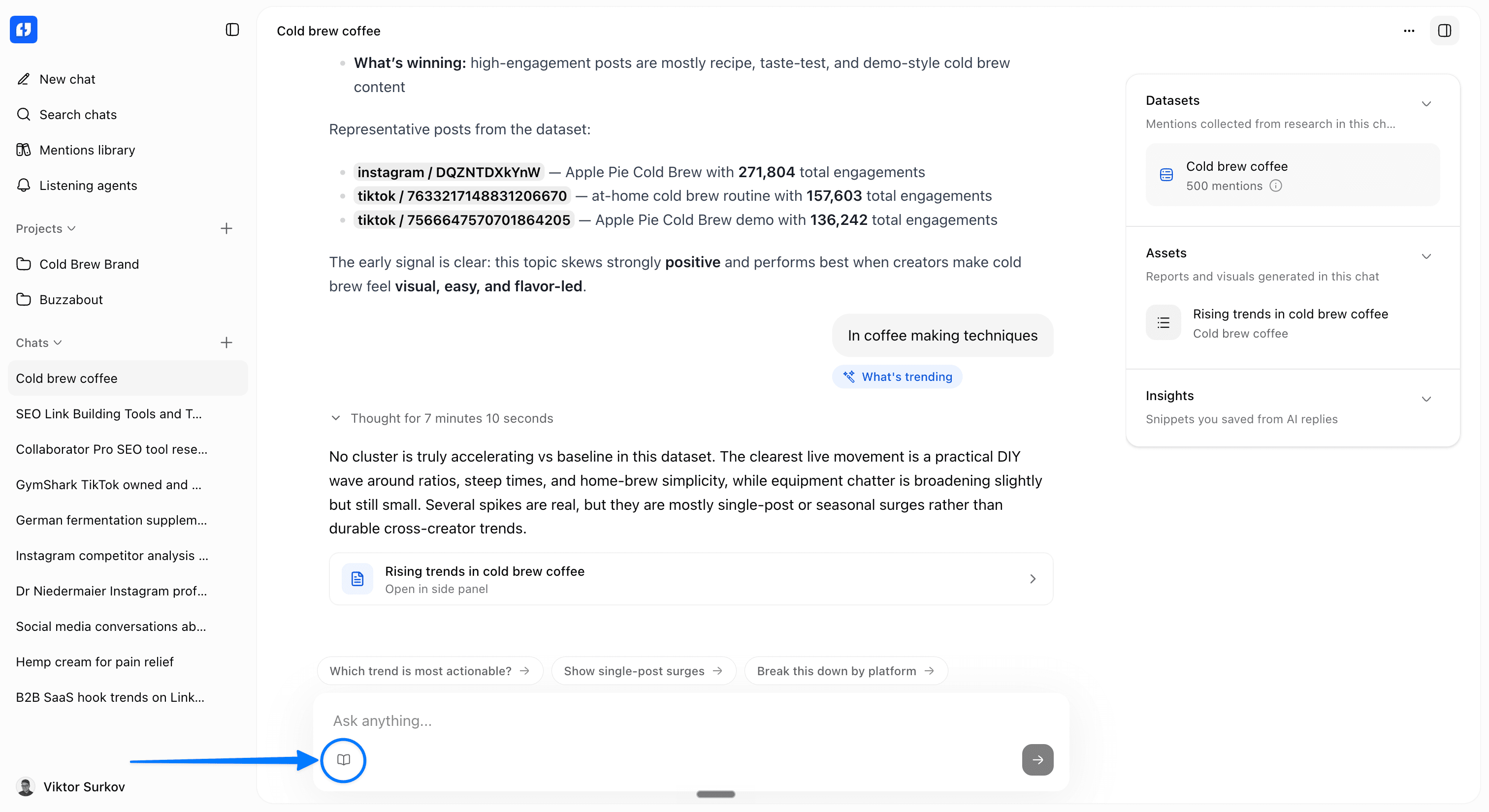
Favourite skills
The picker shows Favourite skills (skills you've starred) with a Browse all skills footer. Click a favourite to apply it instantly, or click Browse all skills to open the full library. The favourites list starts empty — until you star something you'll see No favourite skills yet with the hint to star skills in the library to pin them here.
Browse all skills
In the modal, pick a category in the left Skills sidebar — Market research, Content & positioning, Audience research, Charting & visualization, or Custom — or open the Favorites tab. To find a skill by name, type into Search skills… at the top.
Use this skill
Click a skill row to open its detail view and read the instructions. When it's the right one, click Use this skill to attach it to the current chat draft. The modal closes and the skill appears as an inline chip in the composer.
If no chat is open, Use this skill is disabled with the tooltip Open a chat or project to apply this skill.
Customize
To turn a built-in skill into one you can edit, open it and click Customize. This forks an editable copy (named {name} Custom) and the original stays as is. The tooltip reads Saves as a new custom prompt — the original stays as is. Only custom skills show Edit and Delete; built-in skills only show Customize.
The built-in catalog
The built-in skills span four categories. A few are worth singling out — and several have their own deep-dive tutorial.
Market research — understand your standing and your competitors.
- Mentioned brands — a share-of-voice bar coloured by sentiment, plus a per-brand detail table. This is how you get share of voice; there is no standalone "SoV page." See Track share of voice.
- What's trending — splits your mentions into a recent vs baseline window, shortlists rising topics, and returns an over-time chart with plays to ship this week. See Spot trends.
- Controversy map — finds polarized topics and maps the two sides with quotes.
Content & positioning — turn conversation into a roadmap and a content plan.
- Feature requests — pattern-matches product-directed asks ("please add X"), ranks them by severity, and triages each one. See Analyse feature requests.
- Analyze pain points — clusters pain points weighed by reach and intensity, with messaging and product handles. See Analyse pain points.
- Positive / negative quotes — surfaces the strongest quotes per polarity, with reuse and routing suggestions.
- Suggest content ideas — a synthesis skill that draws on outliers, gaps, pains, and questions to propose scored content briefs. See Generate a content brief.
- Also here: Analyze content outliers, Content gap analysis, Hook analysis, Audience questions, Objections mining, Unmet needs, Summarize comments.
Audience research — understand who is talking.
- Audience demographic chart and Audience psychographic chart (OCEAN radar) render from an audience-profile dataset. See Run audience analysis.
Charting & visualization — quick, focused charts (emotions, intentions, topics vs engagement rate or views, an engagement-rate trend line). These share an identical structure: pick the axis, get the chart and a short takeaway.
Now analyse it → skills
Skills are the analysis engine for every research playbook. Once you have a collection, the fastest path to a decision is to apply the right skill:
- Competitive standing → Mentioned brands (Track share of voice)
- Roadmap input → Feature requests (Analyse feature requests) and Analyze pain points (Analyse pain points)
- Momentum → What's trending (Spot trends)
- Content plan → Suggest content ideas (Generate a content brief)
- Audience → Audience psychographic chart (Run audience analysis)
Gotchas
- Applying a skill does not run anything. A skill is just a saved instruction block. Attaching it pins the skill onto the chat draft. Sending the message consumes charged assistant inference, with data-processing charges separately when needed; reusing results does not make a new assistant turn free.
- Many skills need pre-computed enrichment. Skills that read sentiment, emotion, intent, topic, or brand columns — or an audience-profile dataset — only render fully when that data exists. If it's missing, the skill says so in one line instead of drawing an empty chart.
- Pattern-based skills run async and may charge your balance. Pain points, feature requests, objections, unmet needs, content gap, controversy map, hook analysis, and what's-trending kick off a pattern-detection pipeline that takes a few minutes and can spend credits (post-processing is 0.5 credits per mention, using the server's live account prices). They reuse existing pattern assignments if those have already been computed.
- You must be in a chat or project. Use this skill is disabled outside a chat or project, because there is no draft to attach to.
- Only one skill per message. Applying a skill removes any previously attached skill chip first, so a draft carries just one at a time.
- "Run on a collection" means attaching context. There is no per-skill run button. Attach a collection (or dataset) as context in the same composer before sending; the skill chip and the context chips are independent.
- "Summarize comments" needs a selection first. It runs against post(s) you've selected, not the whole dataset — select at least one post before applying it.
- A couple of skills aren't under a category tab. "Get buzzwords" has no category, so you'll find it only via search or as a favourite.
- Built-in vs custom. Built-in skills can't be edited or deleted — only Customized into a copy. Edit and Delete appear only on your own custom skills; new custom skills land in the Custom category.
Next steps
Track share of voice
Analyse feature requests
Spot trends
Create custom skills
Pattern analysis
Pattern analysis is the technique under most of buzzabout's research — point a question at a dataset and it discovers an emergent taxonomy of clusters along the one axis you choose, from pain points to CTA types to tone of voice.
Create custom skills
Save a reusable research instruction once as a custom skill, then apply it to any chat or project in a single click.