 buzzabout docs
Share & export assets
Download an AI-assistant report or chart as PNG or PDF, or share it with a public link or live embed.
When you ask the AI assistant for a chart, a report, or a dashboard about your B2B SaaS project-management tool, it doesn't just answer in text — it renders a rich deliverable and opens it in the side-panel canvas. That deliverable is an asset, and it's meant to leave the app. You can download it as a PNG or PDF to drop into a deck, or share it as a public link — or a live embed — that anyone can open without logging in. The embed keeps refreshing against your data, so a chart pasted into a Notion page or a blog post stays current. This tutorial covers downloading an asset and sharing it as a link or embed.
Prerequisites
- A rich asset — a chart, report, or dashboard the assistant has rendered and opened in the side-panel canvas. If you only have a plain-text answer, ask the assistant to turn it into a chart or report first. To produce one from scratch, start with Run your first research, then ask the assistant to visualise the result.
Walkthrough
Open the asset in the canvas
In a chat, ask the assistant for something visual — for example, "Chart the sentiment breakdown of project-management complaints over the last 90 days." When it finishes, the assistant renders the result as an asset and opens it in the side-panel canvas on the right. The download and share controls live in the canvas header.
You can also reach the same controls without opening the canvas: every rendered asset appears as a card in the chat right panel (and on the project page if you've saved it), and the card's kebab (More) menu carries the same actions.
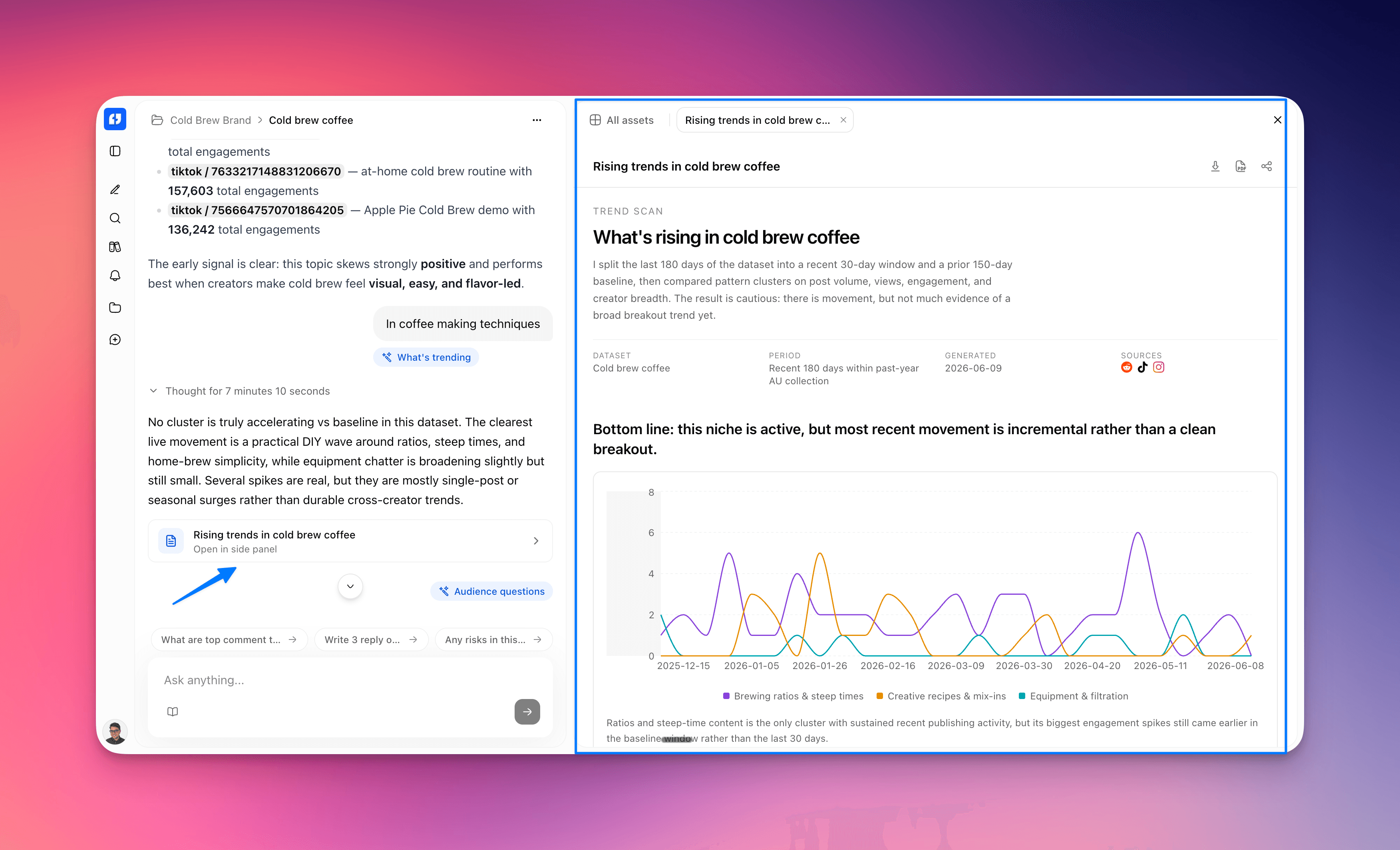
Download as PNG
In the canvas header, click the Download as PNG icon button. The app renders the asset and your browser downloads an image file named after the asset. A toast reading PNG downloaded confirms it; if rendering fails you'll see Couldn't download PNG.
From an asset card instead, open the kebab menu and choose Export PNG (the item reads Exporting… while it works). It produces the same file.
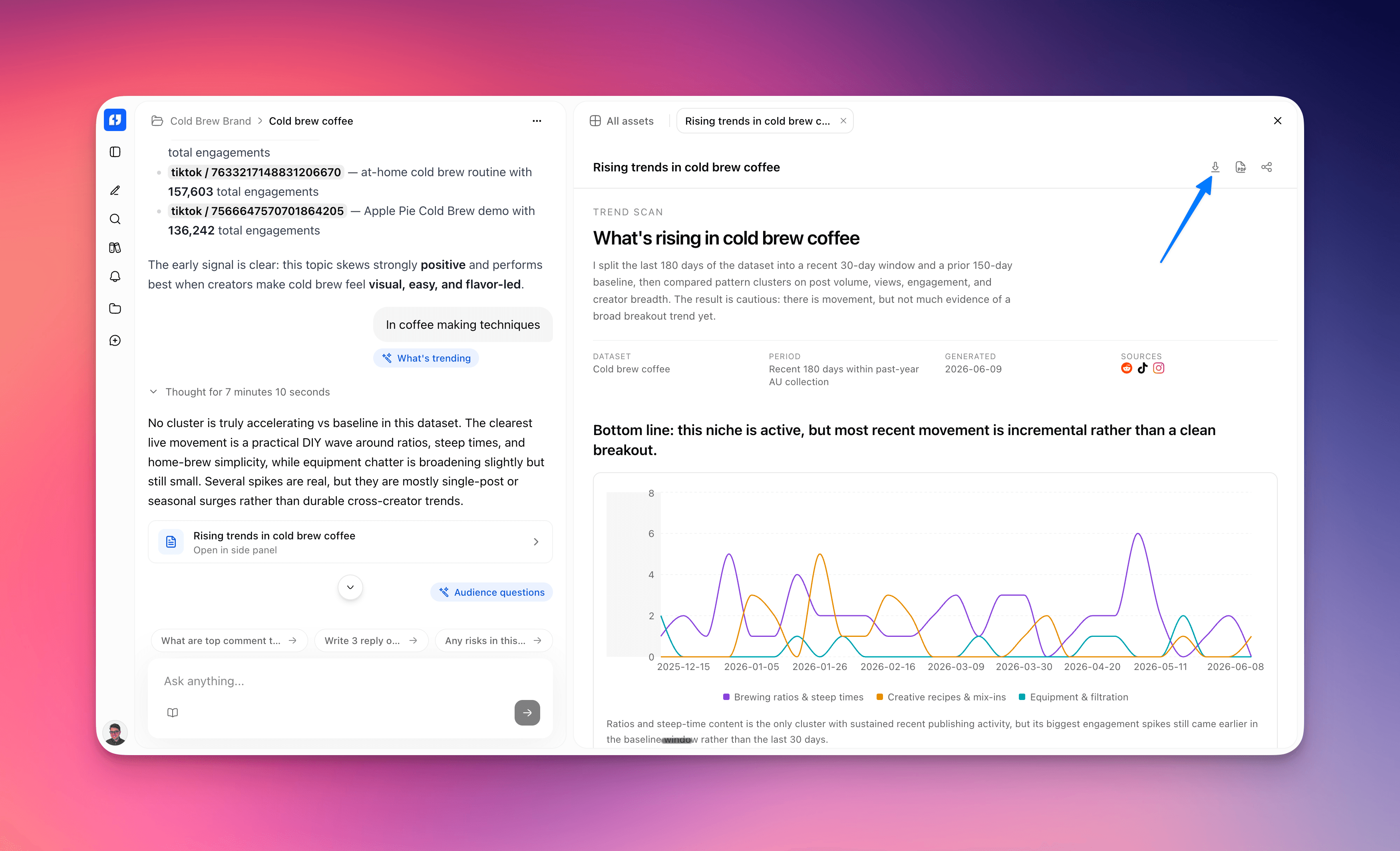
Download as PDF
Next to it, click the Download as PDF icon button to get the same asset as a PDF document. A toast reading PDF downloaded confirms it; on failure you'll see Couldn't download PDF. From an asset card, the equivalent menu item is Export PDF.
Use PNG when you want to paste the chart into a slide or a doc, and PDF when you want a page-sized, print-ready copy of a report.
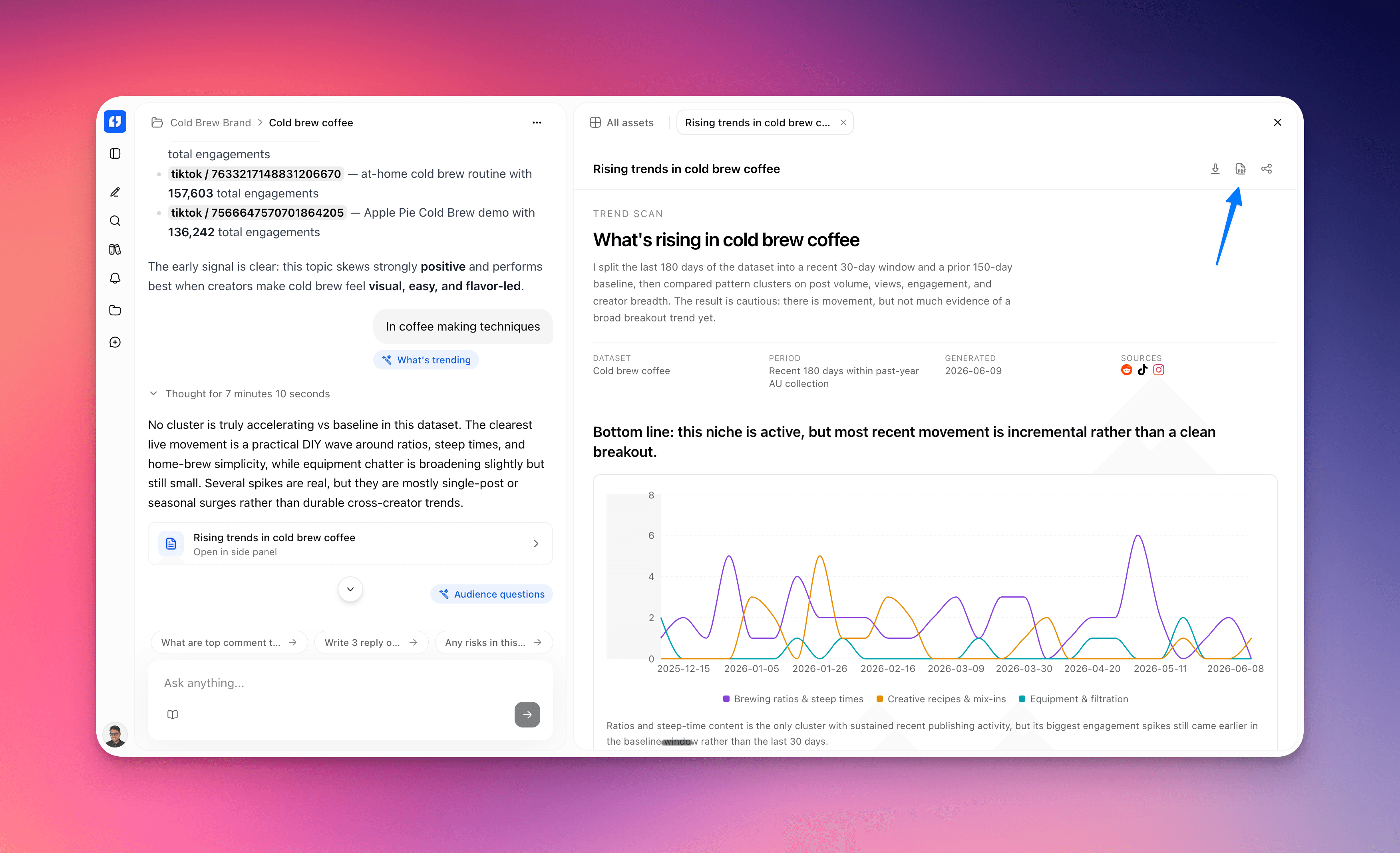
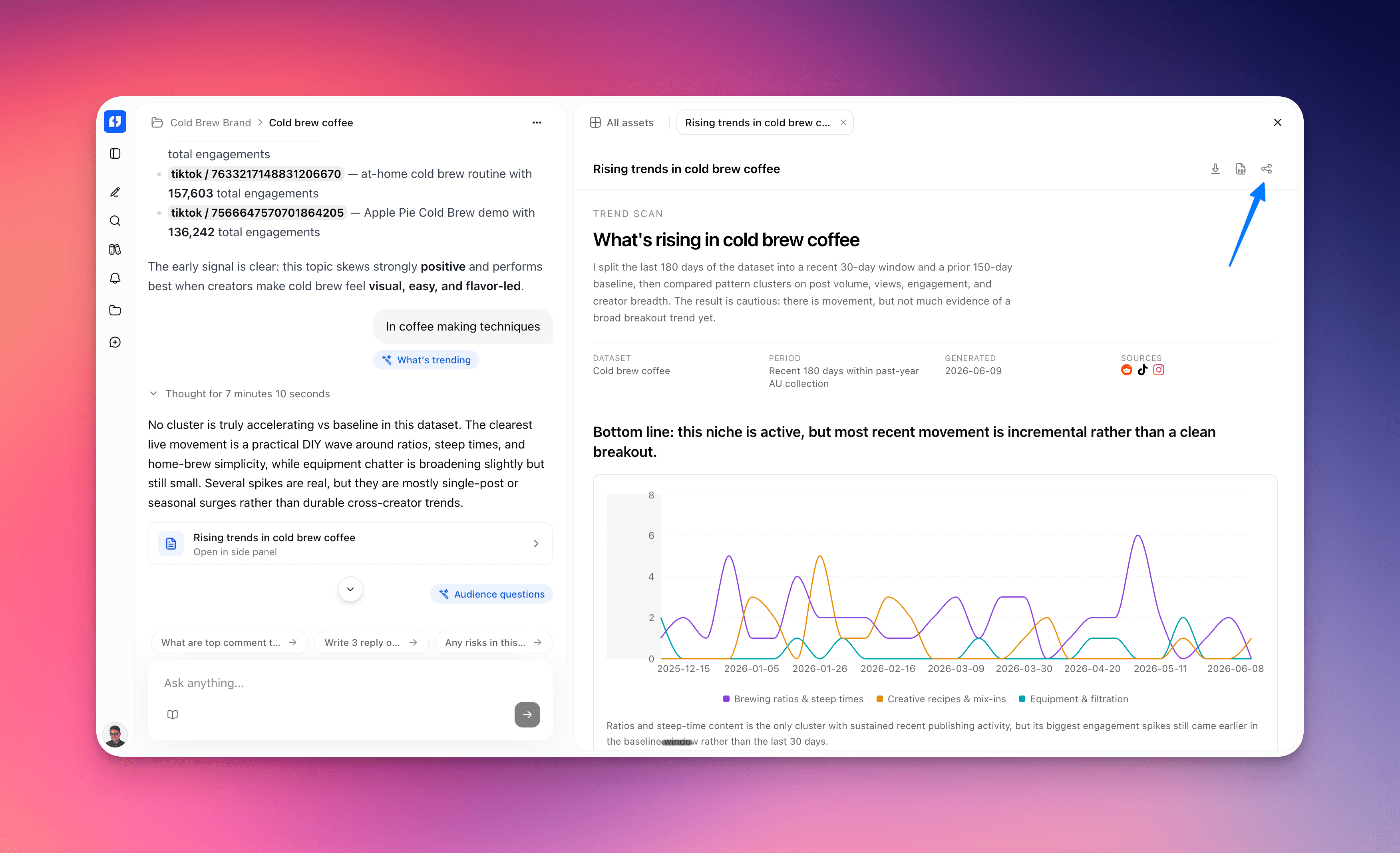
Share asset
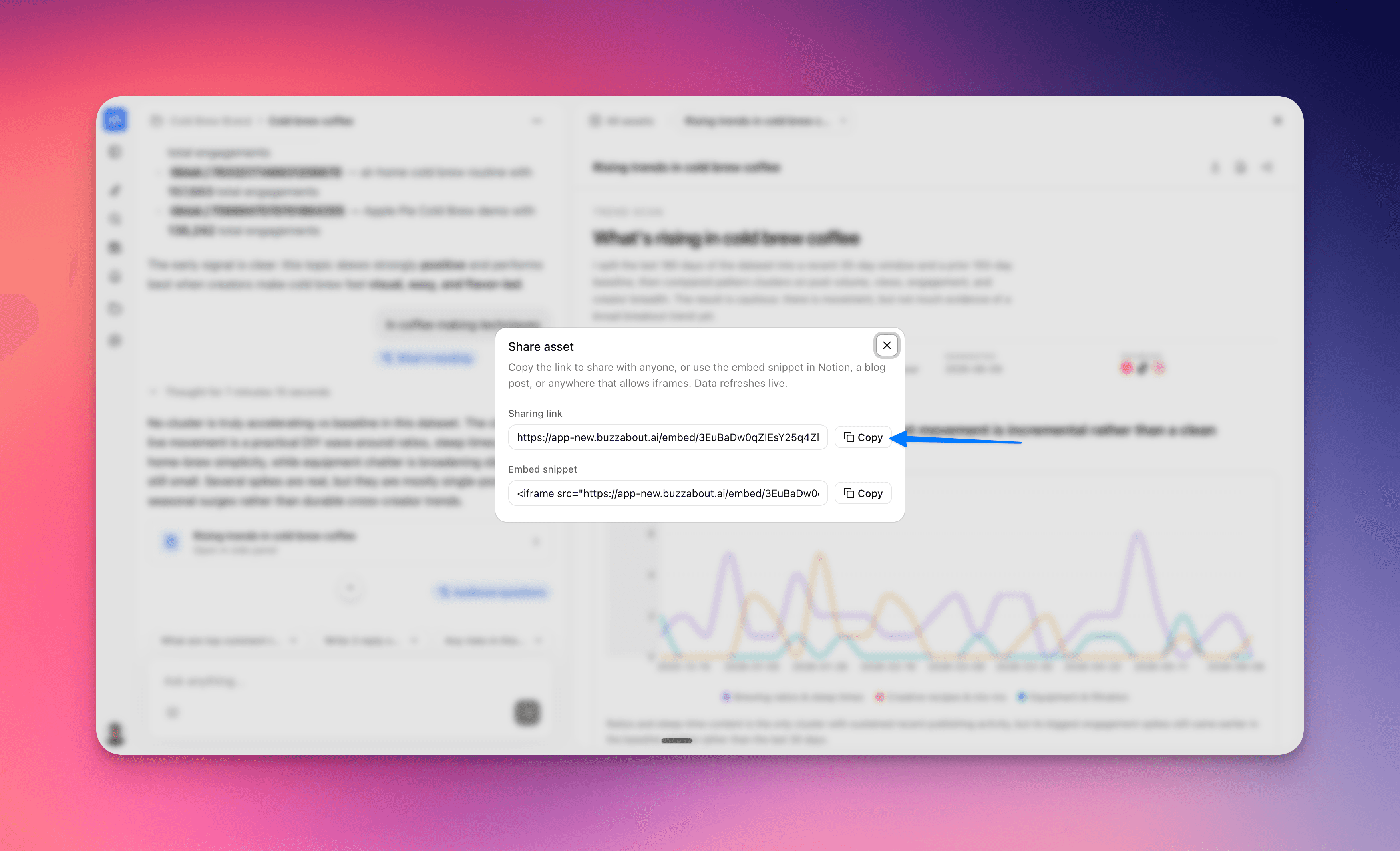
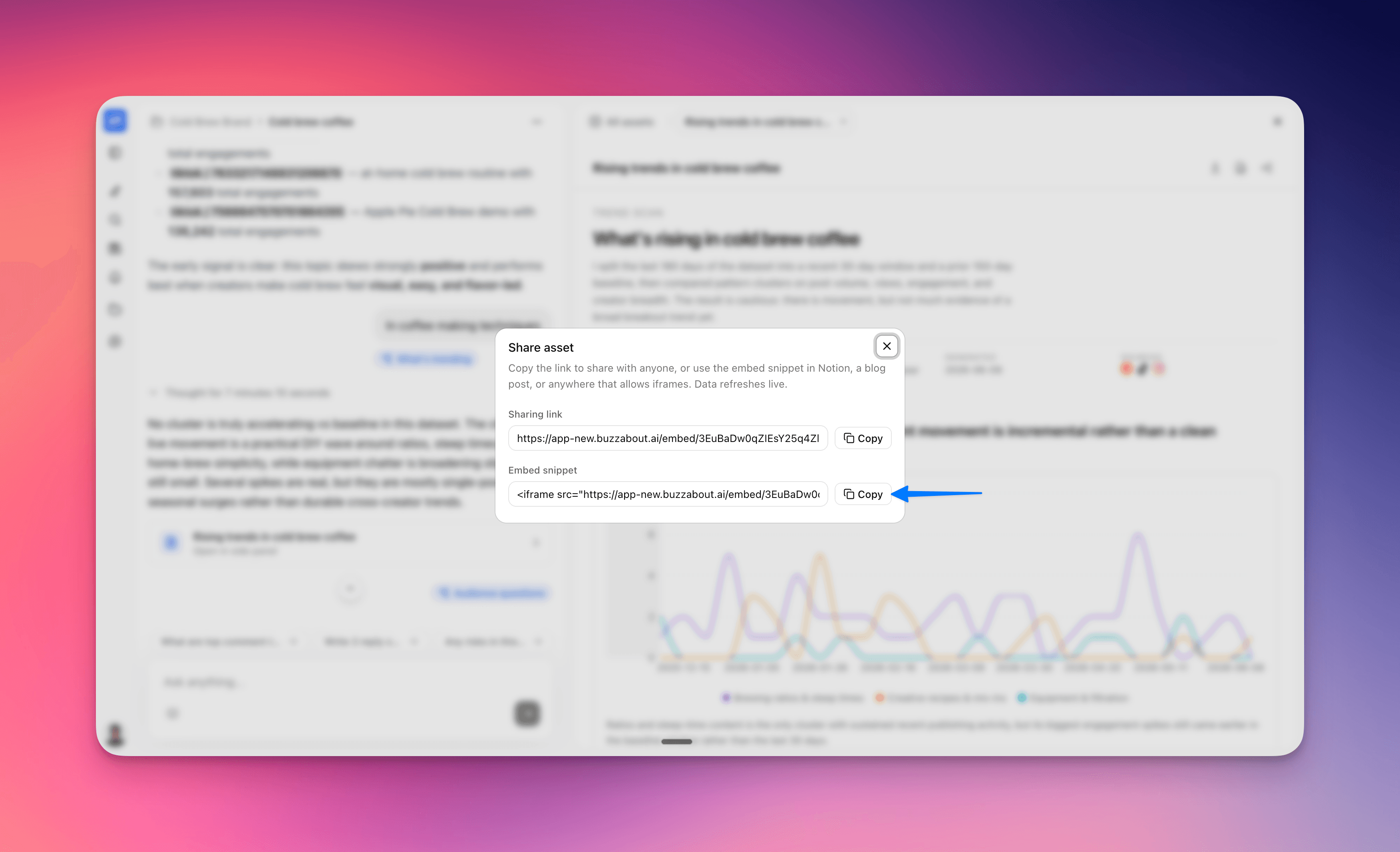
Click the Share asset icon in the canvas header to open the share modal, titled Share asset. The modal reads Copy the link to share with anyone, or use the embed snippet in Notion, a blog post, or anywhere that allows iframes. Data refreshes live. It briefly shows Creating share link… while it mints the link, then displays two read-only fields.
Sharing link
The Sharing link field holds a public URL to your asset. Click Copy next to it — the button toggles to Copied and a Copied to clipboard toast appears — then paste the link into an email, a Slack message, or a doc. Anyone who opens it sees the live asset in a clean viewer; they do not need a buzzabout account.
Embed snippet
The Embed snippet field holds an <iframe> you can paste into anything that allows iframes — a Notion page, a blog post, an internal wiki. Click its Copy button, then paste the snippet into your page's embed or HTML block. The embedded asset renders inline, and because the data refreshes live, the chart stays in sync with your project's mentions every time the page loads.
Gotchas
- Share links are public and unauthenticated. Anyone with the
Sharing link— or anyone who can see a page where you've embedded the asset — can view it without signing in. The public viewer carries aPowered by buzzaboutfooter. Treat the link as you would any public URL: don't share an asset built on data you wouldn't publish. - Embeds refresh live. An embed re-resolves your data each time the page loads, so a shared chart keeps updating after you've pasted it. That's the point — but it also means viewers see the latest numbers, not a frozen snapshot. If you need a fixed copy, download a PNG or PDF instead.
- Download and share are different take-homes. Downloading gives you a static PNG or PDF file on your machine. Sharing gives you a public link plus a live
<iframe>embed — there's no file attached to the share itself. - Sharing and export work for rich assets only. Charts, reports, and dashboards rendered in the canvas can be shared and exported. A plain-text or markdown answer is not a rich asset — its controls are unavailable, so ask the assistant to render the answer as a chart or report first.
- This is not the same as CSV export. Sharing and downloading an asset gives you the rendered deliverable (PNG / PDF / link / embed). Exporting your raw mention rows to a spreadsheet is a separate feature — see Export mentions as CSV — and it produces a
.csvof table rows, not an asset. - There's no plan gating on these controls: any account with a rich asset can download and share it.
Next steps
Export mentions as CSV
Select rows in the Library mentions table and export them to a CSV that includes every column and Smart Parameter — ready to hand off to analysts or pivot in a spreadsheet.
Set up a listening agent
Create an agent that re-runs your datasets' queries on a schedule, grows your Library, and delivers a focused run digest to Slack, a webhook, email, or its own chat.