 buzzabout docs
Set up your project
Create a project, set up its brand context, and reuse a collected dataset across every chat so AI responses are grounded in your brand.
A project is the context layer for a brand or topic: it holds your brand details plus the datasets, insights, and reports you collect, and reuses that context across every chat inside it. Set it up once for your cold-brew coffee brand and every analysis, content brief, and listening agent already knows your category, positioning, and tone — and can pull from the same dataset you collected earlier — so AI answers come back sharper and you never re-explain your brand or re-collect the same data again.
Walkthrough
New project
In the left sidebar, open the Projects section and click the + button (or the New project row) to open the Create project modal. The modal notes that Projects help you organize chats, datasets, and listening agents around a topic or brand.
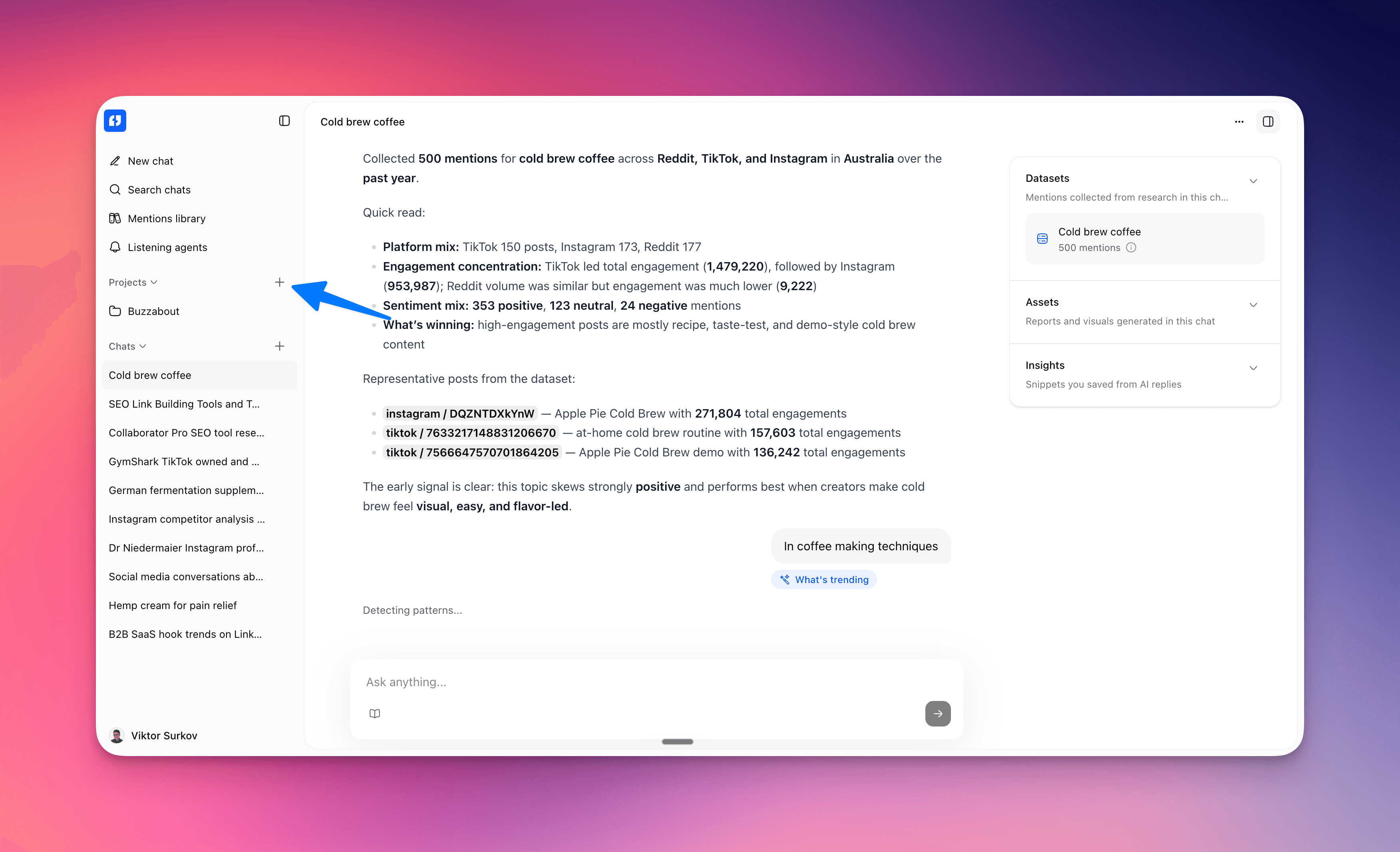
Create project
Enter a Project name — the placeholder suggests e.g. Q2 Competitor Analysis, but for our example use something like Cold Brew Brand. Click Create (or Cancel to back out). You're routed to the new project page at /project/[projectId].
Set up brand context
On the project page, the right-hand settings card has a Brand context section. With nothing set yet, it reads Add context to tailor responses. Click the + button to open the Set up brand context modal. As the modal explains: Add your brand details to tailor AI responses across all project chats. This is the context layer at work — the details you add here are fed into every chat in the project, so the AI answers in your brand's terms instead of guessing.
Auto-fill
Optionally paste your Website URL (placeholder https://yourbrand.com) and click Auto-fill. As the modal says, Paste your website URL and we'll extract brand details automatically. The button shows Analyzing… while it runs AI extraction over the site, then fills in Brand name, Category, Description, USP, and Tone of voice. Note that auto-fill overwrites whatever is already in those fields, and a URL with no scheme is normalized to https://.
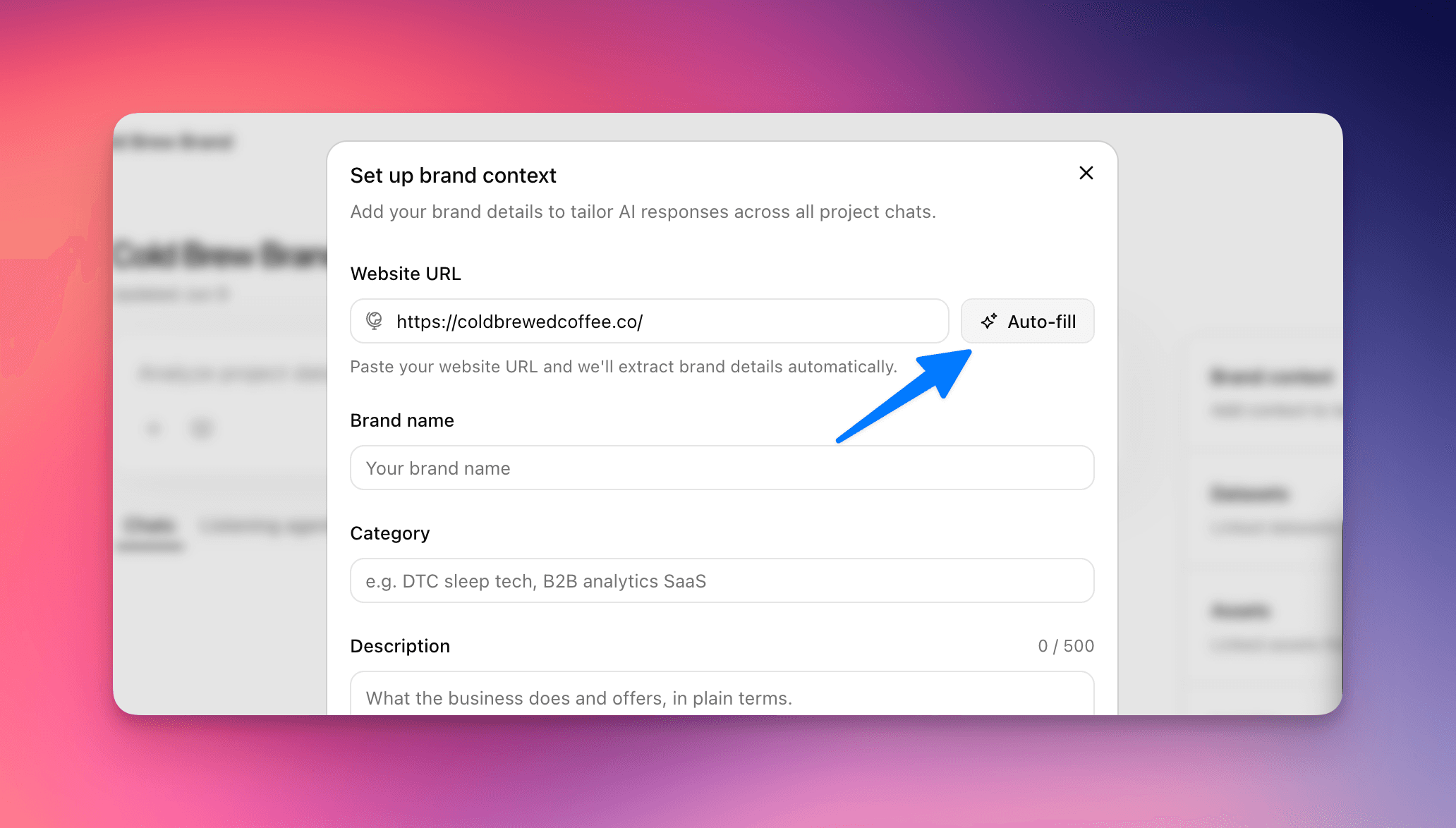
Save
Review and edit the fields. For the cold-brew brand that might be Brand name: your brand; Category (placeholder e.g. DTC sleep tech, B2B analytics SaaS): DTC cold-brew coffee; Description (What the business does and offers, in plain terms.); USP (What makes this brand different from the alternatives?); and Tone of voice (Formal, friendly, authoritative, playful…). Optionally expand Additional instructions for Project-specific instructions that apply to every chat in this project. Click Save; you'll see a Brand context saved toast.
Edit brand context
Later, use the 3-dot menu on the Brand context row to Edit or Remove. Choosing Remove confirms with Remove brand context? and the note This removes the brand context from this project. You can always add it back later. Removing only clears the context — it does not delete the project.
Add to project
Brand context is one half of the context layer; your collected data is the other. Collect a dataset once — say a scrape of cold-brew conversations on Reddit and TikTok — and you can reuse it as grounding in every chat in this project instead of re-collecting it.
A dataset is only linked to a project by an explicit action. Open the dataset's kebab (3-dot) menu and choose Add to project, then pick this project. You'll see an Added to <project> toast, and the dataset now appears in the project's right-panel Datasets section (subtitle Linked datasets from project chats).
Add to project explicitly for the dataset to be reusable in other chats.Add context
Now start a New project chat from the project dashboard and click the Add context (+) button below the input. The popover shows an In this project section listing the datasets you linked. Select your cold-brew dataset to ground the new chat in it, then send your first message — the chat now answers from that data plus the brand context, with no re-collection needed.
Analyze project data
Keep working. Use the Analyze project data chat input to ask questions, and switch between the Chats and Listening agents tabs on the project. Every chat here inherits the brand context you set, and any linked dataset is one click away under Add context — so the project's full context layer (brand details, datasets, saved insights, and reports) is applied across every chat.
Gotchas
- Dataset linking is manual. A research run inside a project chat does not add its dataset to the project. Use the dataset kebab menu's
Add to projectto link it; only then does it show up underIn this projectin other chats. Add context(+) appears only inside a project. TheIn this projectdataset list shows up in project chats, not in standalone (non-project) chats. It lists mentions datasets; audience datasets can be linked but don't appear in this picker.- There is no separate "Workspace". buzzabout's hierarchy is your account → projects → (chats, datasets, listening agents). "Workspace" only ever refers to a connected Slack workspace under integrations — there's no project-vs-workspace distinction to manage here.
- Brand context is per-project, not global. It tailors AI responses across all chats in that one project. A second project starts with no brand context until you set it again.
Auto-filloverwrites fields. It runs AI extraction over the website URL and replaces the form values, so run it before hand-editing. A URL with no scheme is saved ashttps://.- Save is diff-based. Only changed fields are sent, and clearing a field sends an empty value.
Savestays disabled when nothing has changed, or whenDescriptionexceeds its 500-character limit. - Field limits are enforced in the UI: brand name 100, category 60, description 500, USP 200, tone of voice 200, and additional instructions 1000 characters.
- Plan limits can block creation. If you're over your project limit, a plan-limit modal opens instead of the
Create projectmodal. - The onboarding questionnaire is not project setup. The first-run questionnaire is a short pre-app intent capture that ends at the upgrade page; it never creates a project or sets brand context.
- The API/MCP names for these actions differ from the UI: project creation maps to
useCreateProject, brand context touseUpdateProjectContext/useExtendProjectContext, and dataset linking tolinkDatasetinternally. None of these are exposed on the public API or MCP surface — this is a UI-only flow.
Next steps
Run your first research
Go from a blank home screen to your first set of earned-media mentions in the app, then ask the assistant a follow-up question or apply a skill.
Pattern analysis
Pattern analysis is the technique under most of buzzabout's research — point a question at a dataset and it discovers an emergent taxonomy of clusters along the one axis you choose, from pain points to CTA types to tone of voice.