 buzzabout docs
Create custom skills
Save a reusable research instruction once as a custom skill, then apply it to any chat or project in a single click.
If your team keeps retyping the same research prompt — for a B2B SaaS project-management tool, say, "pull recurring complaints about onboarding and group them by team size" — turn it into a custom skill. You write the instruction once, save it to the Skills library, and from then on apply it to any chat or project with one click. It is the fastest way to standardise how you and your colleagues run a recurring analysis: the same prompt, phrased the same way, every time.
Prerequisites
The Skills library opens from inside the chat input, so you need at least one open chat or project to reach it. If you have not created one yet, see Set up your project.
Walkthrough
Open skills
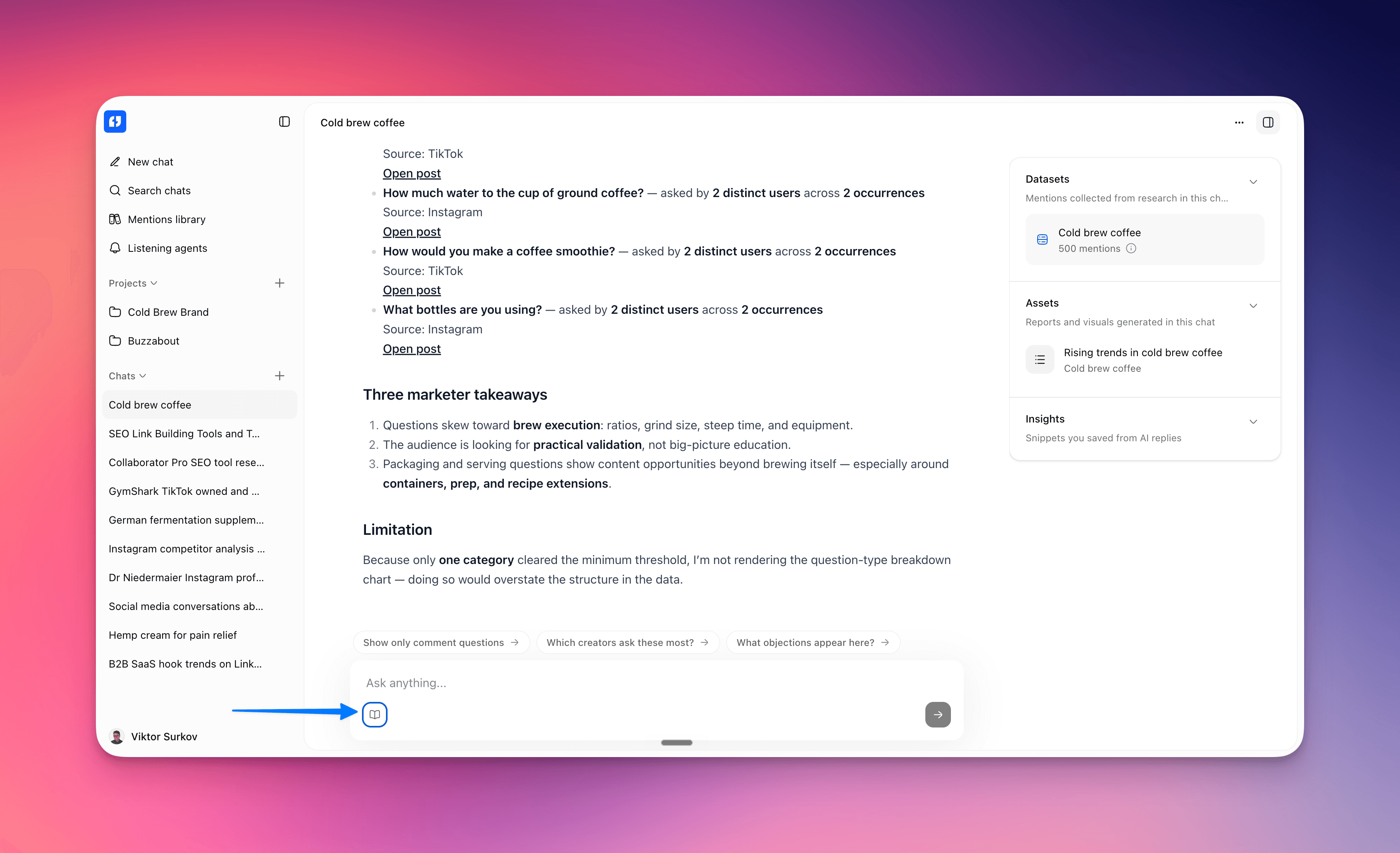
In an open chat or project, click the book icon in the chat input toolbar (labelled Open skills) to open the Skills popover.
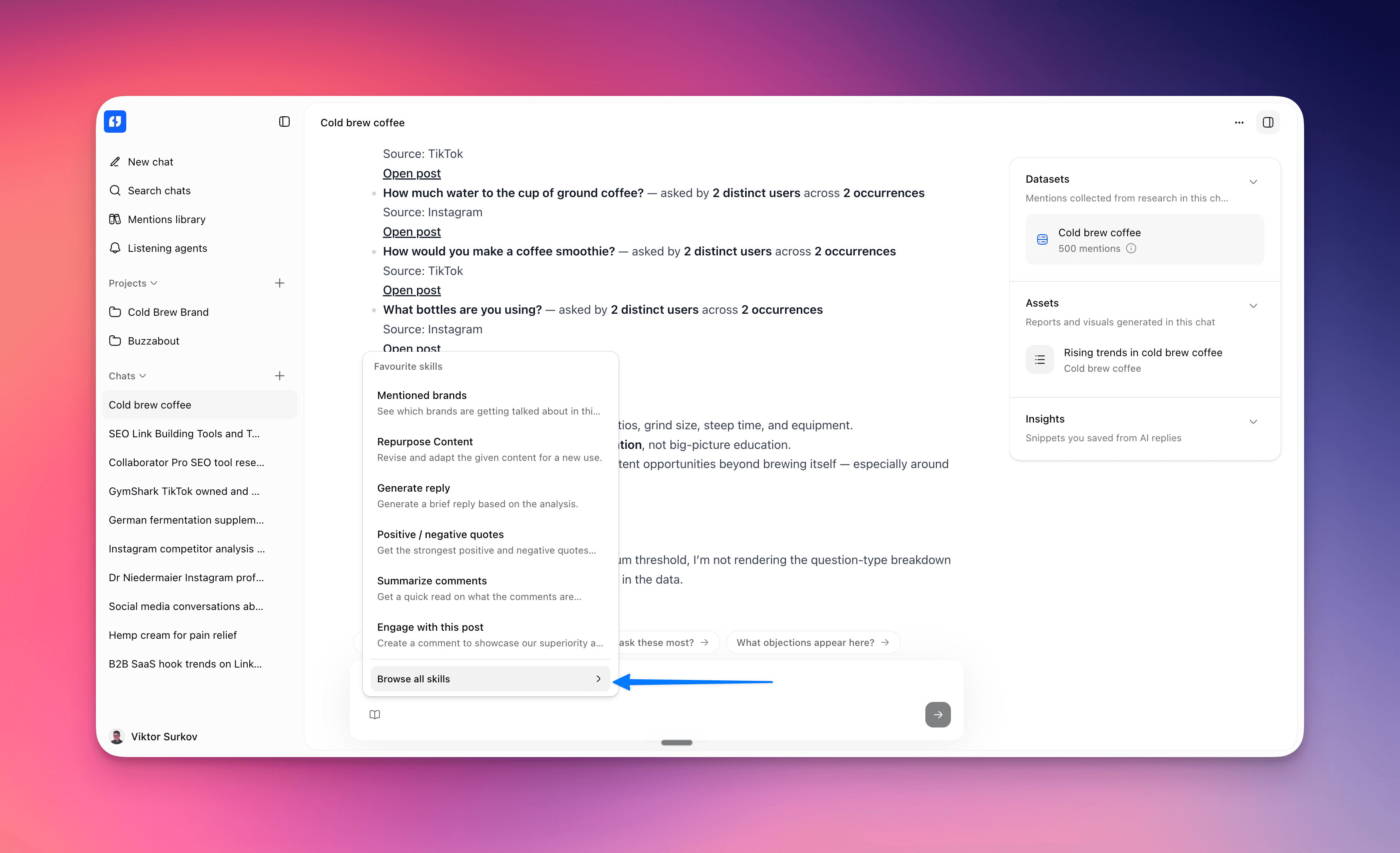
Browse all skills
In the popover, click Browse all skills to open the Skills library modal. The popover itself only lists your starred skills for quick access, so this is the way into the full library.
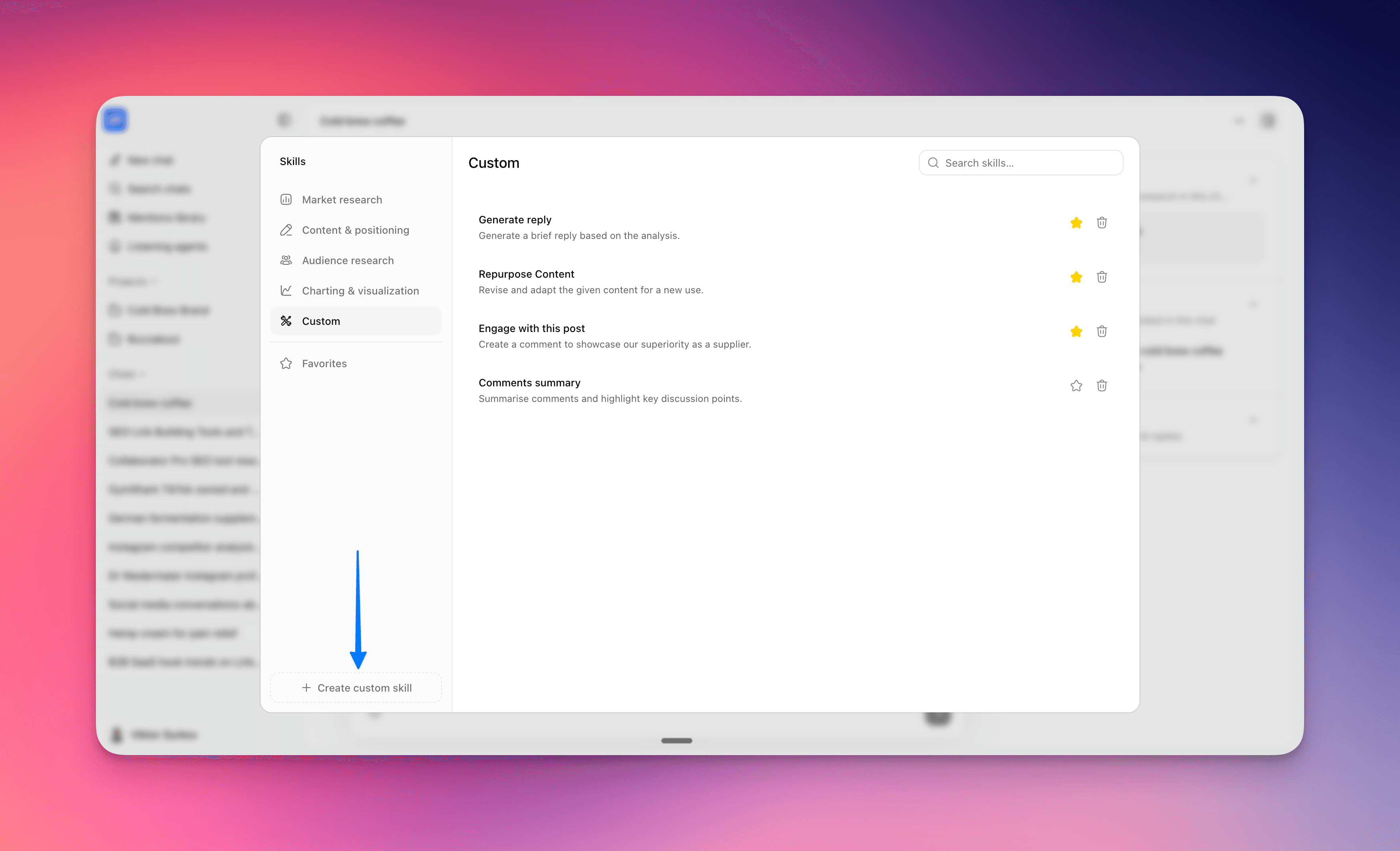
Create custom skill
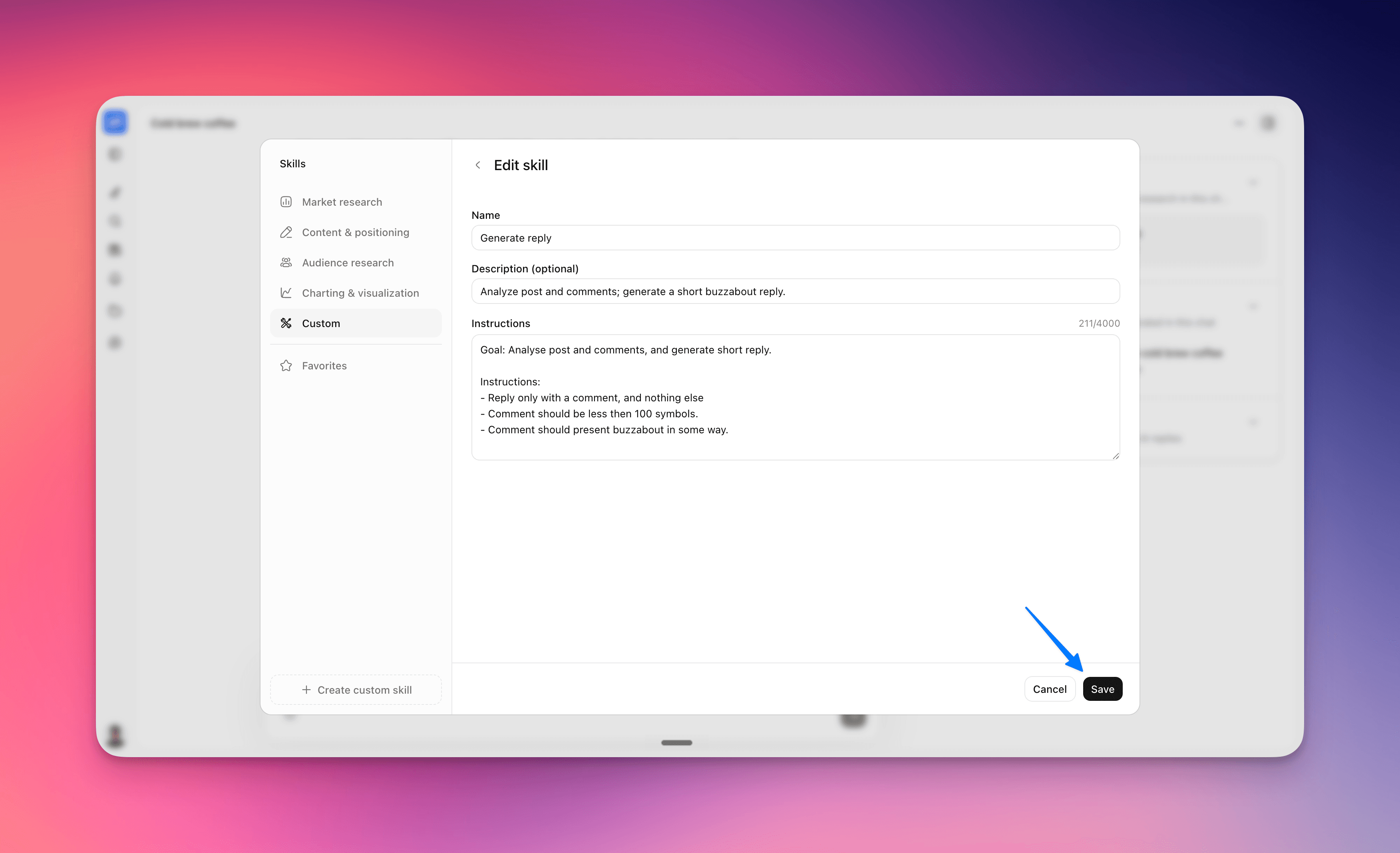
In the modal's left sidebar (titled Skills), click Create custom skill — the dashed button at the bottom of the sidebar. This switches the active category to Custom and opens the create form on the right.
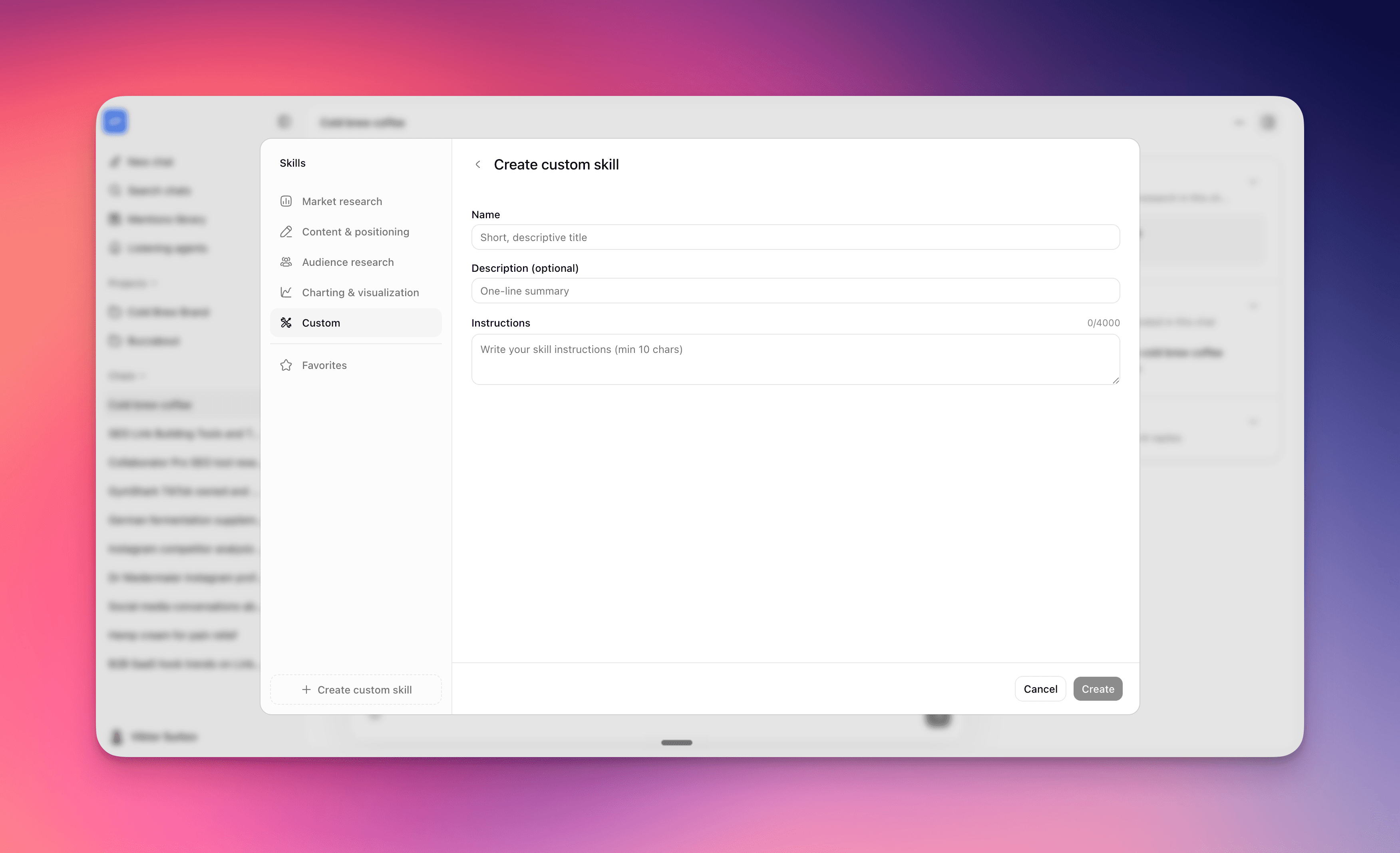
Name, description, and instructions
Fill in the create form's three fields:
Name(required, 1–120 characters; placeholderShort, descriptive title) — e.g.Onboarding feedback by team size.Description (optional)(up to 400 characters; placeholderOne-line summary) — a reminder of what the skill does, e.g.Groups onboarding complaints by company/team size.Instructions(required, 10–4000 characters, with a live character counter) — the prompt the assistant runs when you apply the skill, e.g.Analyse onboarding feedback for our B2B SaaS project-management tool. Group recurring complaints by team size and surface the top three themes with example mentions.
Create
Click Create. The button shows Creating… while it saves. On success a Skill created toast appears and the new skill opens in its detail view. Saving is a plain store operation — no AI generation, no charge.
Use this skill
Your new skill lives under the Custom category. From its detail view you can Edit or Delete it, star it to add it to Favorites, or click Use this skill to drop its instructions into the open chat or project draft.
Now apply it
A custom skill is only useful once you run it against collected data. Open a chat or project on a dataset, apply the skill, and the assistant works through your saved instruction — grouping onboarding complaints by team size, surfacing the top themes, and quoting example mentions. The same pattern works for any recurring analysis you save: pain points, feature requests, positive and negative quotes, objections, or share of voice. To apply built-in skills the same way and see the full catalogue, see Use skills.
Gotchas
- "Skill" and "prompt" are the same thing. The interface says
skill(sidebarSkills, buttonsCreate custom skillandUse this skill), but the underlying API path is/processing/prompts. Built-in catalog items are prompts; the ones you create are custom skills. Treat skill and prompt as the same object. - Creating a skill is free. Saving is a plain create-and-store operation — there is no AI generation and nothing is charged. The skill does not run anything on its own; it just stores reusable instructions you apply later.
- Validation is enforced.
Namemust be 1–120 characters,Description (optional)is capped at 400, andInstructionsmust be 10–4000. TheCreatebutton stays disabled until the form is valid. - You cannot pick a category. New skills are always filed under
Custom. The four thematic categories —Market research,Content & positioning,Audience research, andCharting & visualization— only hold the built-in catalog. - Only custom skills can be edited or deleted. Built-in catalog skills show a
Customizebutton instead, which forks them into a new custom skill — the tooltip readsSaves as a new custom prompt — the original stays as is. The copy lands underCustomand the original built-in skill is untouched. Favoritesis a filter, not a folder. Starring a skill makes it show underFavoritesand pins it to the chat-input Skills popover for quick access — it does not move the skill out ofCustom.Use this skillneeds an open draft. The button is disabled unless a chat or project draft is active; the tooltip readsOpen a chat or project to apply this skill.
Next steps
Use skills
Apply a saved, expert instruction block to any chat so the AI assistant analyses your mentions a consistent, repeatable way — and browse the built-in skills catalog.
Use smart parameters
Turn any question you have about your mentions into an AI-filled column that runs your prompt against every post and stores the answer.